Step by Step upgrade procedure of NXOS for Nexus 3000

Verify Current System State

  • Check the current NX-OS version:
show version

Verify the system is stable and there are no issues:

show module
show system resources
  1. Download the NX-OS Image
    • Obtain the correct NX-OS image from Cisco’s official website.
    • Ensure the image is compatible with your Nexus 3000 model and the features you need.
  2. Copy the NX-OS Image to the Device
    • Copy the image to the switch using TFTP, FTP, SFTP, or SCP:
copy scp://[username]@[server]/[path_to_image]/[image_name].bin bootflash:
  • Replace [username], [server], [path_to_image], and [image_name] with your actual server and image details.
show file bootflash:[image_name].bin md5sum
  • Confirm the checksum matches the one provided by Cisco.
install all nxos bootflash:[image_name].bin

Alternatively, if your device doesn’t support ISSU (In-Service Software Upgrade), you’ll need to perform a disruptive upgrade:

boot nxos bootflash:[image_name].bin

Reload the System

  • If required (for a disruptive upgrade), reload the switch to boot into the new image:
reload
  • Confirm the reload if prompted.
show version

Post-Upgrade Checks

  • Ensure all services and protocols are running as expected:
show feature
show interface brief

Check the logs for any errors:

show logging

Save the Configuration

  • Save the running configuration to the startup configuration:
copy running-config startup-config

Backup Configuration

  • It’s good practice to backup your configuration after an upgrade:
copy running-config scp://[username]@[server]/[destination_path]/[config_backup].cfg

Integrating Grafana on macOS to visualize vmkernel.log stats

Integrating Grafana on macOS to visualize vmkernel.log stats from VMware environments involves several steps, including setting up a logging stack that can ingest and process vmkernel.log data, and then visualizing that data with Grafana. A common approach involves using the ELK Stack (Elasticsearch, Logstash, Kibana) for logging and data processing, and then Grafana for advanced visualizations. Since Kibana often fulfills the role of visualization in the ELK Stack, integrating Grafana as well offers more customization and visualization options.

This guide will walk you through setting up Filebeat to ship vmkernel.log data to Elasticsearch, processing it with Logstash (if necessary), and then visualizing it with Grafana on macOS.

Step 1: Install Elasticsearch and Kibana

Install Elasticsearch:

    brew tap elastic/tap
    brew install elastic/tap/elasticsearch-full

    Start Elasticsearch:

    brew services start elastic/tap/elasticsearch-full

    Install Kibana (optional, for managing Elasticsearch data and initial visualization):

    brew install elastic/tap/kibana-full

    Start Kibana:

    brew services start elastic/tap/kibana-full

    Step 2: Install and Configure Filebeat on VMware ESXi Host

    Filebeat is a lightweight shipper for forwarding and centralizing log data. Install it on a system that has access to vmkernel.log, like a management workstation or directly on the VMware ESXi host if supported.

    1. Download Filebeat on your VMware ESXi host or another server that has access to the vmkernel.log files.
    2. Configure Filebeat to monitor vmkernel.log:
      • Locate the filebeat.yml configuration file.
      • Configure the filebeat.inputs section to point to the location of your vmkernel.log file, usually found at /var/log/vmkernel.log on ESXi hosts.
      • Set up the Elasticsearch output in filebeat.yml to point to your Elasticsearch installation.
    3. Start Filebeat to begin shipping logs to Elasticsearch.

    Step 3: Install Grafana on macOS

    Since you’re interested in Grafana, assuming you’ve already installed it following the previous instructions:

    brew install grafana
    brew services start grafana

    Step 4: Integrate Grafana with Elasticsearch

    1. Open Grafana in your web browser (http://localhost:3000 by default).
    2. Navigate to Configuration > Data Sources.
    3. Click Add data source, and select Elasticsearch.
    4. Configure the Elasticsearch data source with the URL of your Elasticsearch instance (http://localhost:9200 by default).
    5. Save and test the data source to ensure Grafana can communicate with Elasticsearch.

    Step 5: Create Dashboards in Grafana

    With Elasticsearch data available in Grafana, you can start creating dashboards:

    1. Go to the Grafana sidebar, click the + icon, and select Dashboard.
    2. Click Add new panel, and select the Elasticsearch data source you configured.
    3. Use Grafana’s query editor to select and visualize vmkernel.log data based on your requirements, such as visualizing error counts, specific log messages, or activity over time.

    References :::

    https://docs.elastic.co/integrations/vsphere

    Install graphana in mac

    To install Grafana on a macOS, you can use Homebrew, a popular package manager for macOS. This method simplifies the installation and update process for Grafana. Here’s how you can do it:

    Step 1: Install Homebrew

    If you haven’t already installed Homebrew on your Mac, open Terminal and run the following command. This command downloads and installs Homebrew:

    /bin/bash -c "$(curl -fsSL https://raw.githubusercontent.com/Homebrew/install/HEAD/install.sh)"

    Follow the on-screen instructions to complete the installation.

    Step 2: Install Grafana using Homebrew

    Once Homebrew is installed, you can install Grafana by running the following command in Terminal:

    brew install grafana

    This command downloads and installs the latest version of Grafana.

    Step 3: Start Grafana

    After installation, you can start the Grafana server using the Homebrew services command:

    brew services start grafana

    This command starts Grafana and sets it up to run as a background service, ensuring that Grafana automatically starts when your Mac boots up.

    Step 4: Access Grafana

    Once Grafana is running, you can access the Grafana web interface by opening a web browser and navigating to:

    http://localhost:3000

    By default, the login credentials are:

    • Username: admin
    • Password: admin

    You’ll be prompted to change the password upon first login.

    Step 5: Configure Grafana

    After logging in, you can start configuring Grafana by adding data sources, creating dashboards, and importing or creating panels to visualize your data.

    Updating Grafana

    To update Grafana to the latest version in the future, you can use Homebrew’s update and upgrade commands:

    brew update
    brew upgrade grafana

    This set of commands updates the Homebrew repository information and then upgrades Grafana to the latest version provided by Homebrew.

    PowerShell script to identify virtual machines (VMs) that have been cloned from a snapshot

    The script below demonstrates how you can list VMs cloned from snapshots. It checks each VM to see if it has a parent snapshot by examining its disk’s parent disk. If the parent disk is a snapshot, it implies the VM was cloned from that snapshot.

    # Connect to vCenter Server
    $vcServer = 'your-vcenter-server'
    Connect-VIServer -Server $vcServer -Credential (Get-Credential)

    # Function to check if a VM is cloned from a snapshot
    function Check-VMClonedFromSnapshot {
    param (
    [VMware.VimAutomation.ViCore.Impl.V1.Inventory.VirtualMachineImpl]$VM
    )

    $isClonedFromSnapshot = $false
    $vmDisks = Get-HardDisk -VM $VM

    foreach ($disk in $vmDisks) {
    $diskInfo = $disk.ExtensionData.Backing
    if ($diskInfo.Parent -ne $null) {
    $parentDisk = Get-View -Id $diskInfo.Parent.VmSnapshot
    if ($parentDisk -ne $null) {
    $isClonedFromSnapshot = $true
    break
    }
    }
    }

    return $isClonedFromSnapshot
    }

    # Get all VMs
    $vms = Get-VM

    # Check each VM and report if it is cloned from a snapshot
    foreach ($vm in $vms) {
    if (Check-VMClonedFromSnapshot -VM $vm) {
    Write-Host "$($vm.Name) is cloned from a snapshot."
    }
    }

    # Disconnect from vCenter Server
    Disconnect-VIServer -Server $vcServer -Confirm:$false

    Wireshark and what to check

    How to Collect PCAP Files

    Using Wireshark:

    1. Download and Install Wireshark: First, download Wireshark from the official website and install it on your system.
    2. Start a Capture: Open Wireshark and select the network interface you want to capture traffic from. Click the shark fin icon to start capturing packets.
    3. Apply Filters (Optional): You can apply filters to narrow down the traffic you’re interested in. For instance, use ip.addr == 192.168.1.1 to filter traffic to and from IP address 192.168.1.1.
    4. Stop the Capture: Click the red square icon to stop capturing once you’ve collected enough data.
    5. Save the Capture: Go to File > Save As and save your capture file (.pcap or .pcapng format) for analysis.

    Using tcpdump on Linux:

    1. Install tcpdump (if necessary): On most Linux distributions, you can install tcpdump using the package manager, e.g., sudo apt install tcpdump on Debian/Ubuntu.
    2. Capture Packets: Use a command like sudo tcpdump -i eth0 -w capture.pcap to capture packets on the eth0 interface and write them to capture.pcap. Replace eth0 with the appropriate interface name for your system.
    3. Stop the Capture: Press Ctrl+C to stop capturing.

    What to Check in PCAP Files

    Example 1: Connectivity Issues

    • Symptom: A user cannot connect to a web server.
    • Analysis: Look for TCP three-way handshake (SYNSYN-ACKACK) sequences. If you see SYN packets without corresponding SYN-ACK responses, the connection attempt is likely being blocked or the destination is unreachable.

    Example 2: High Latency

    • Symptom: Applications are experiencing slow response times.
    • Analysis: Check the timestamps between packets in a TCP stream (filter: tcp.stream eq 1). Long delays between SYN and SYN-ACK or between data packets and their acknowledgments indicate high latency.

    Example 3: DNS Issues

    • Symptom: Domain names do not resolve.
    • Analysis: Filter DNS traffic using dns. Look for DNS queries (A or AAAA records) without responses or with failure response codes (e.g., NXDOMAIN).

    Example 4: Packet Loss

    • Symptom: Unstable network connections and performance.
    • Analysis: Check for TCP retransmissions (filter: tcp.analysis.retransmission). Frequent retransmissions suggest packet loss.

    Example 5: Misconfigured Firewall or Security Devices

    • Symptom: Legitimate traffic is dropped or blocked.
    • Analysis: Look for TCP resets (RST packets) immediately following a successful handshake or during an established connection. Unexpected RST packets often indicate that a firewall or security device is interrupting the flow.

    Example 6: Broadcast Storm

    • Symptom: Network slowdown or collapse.
    • Analysis: Filter for broadcast traffic (eth.dst == ff:ff:ff:ff:ff:ff). A high volume of broadcast packets can overwhelm network resources.

    Example 7: ARP Poisoning

    • Symptom: Man-in-the-middle (MITM) attacks or IP conflicts.
    • Analysis: Filter ARP traffic (arp). Look for multiple ARP responses (ARP is at) from different MAC addresses claiming the same IP address, indicating a potential ARP poisoning attack.

    Frequent TCP Retransmissions: Indicates network congestion or packet loss.

    ===================================

    Interpreting Error Logs

    Error logs in PCAP files aren’t explicitly labeled as such, but certain patterns can indicate problems:

    Continuous ARP Requests without Replies: Indicates the queried device is unreachable at Layer 2.

    No. Time Source Destination Protocol Length Info
    162 2.312345 192.168.1.100 Broadcast ARP 60 Who has 192.168.1.1? Tell 192.168.1.100

    DNS Queries without Responses: Suggests DNS issues or misconfigurations.

    No. Time Source Destination Protocol Length Info
    204 3.123456 192.168.1.100 8.8.8.8 DNS 74 Standard query 0x2aaf A example.com

    Frequent TCP Retransmissions: Indicates network congestion or packet loss.

    No. Time Source Destination Protocol Length Info
    438 5.678901 192.168.1.100 93.184.216.34 TCP 66 [TCP Retransmission] 443 > 51762 [ACK] Seq=1 Ack=1 Win=65535 Len=0

    =====================================

    When analyzing a PCAP file for network connectivity issues, you’re essentially looking for clues that indicate where the communication breakdown is occurring. Below are 10 examples of what to look for in PCAP files to diagnose network issues.

    Example 1: DNS Lookup Failures

    Symptom: Unable to resolve domain names.

    What to Look For: Filter DNS traffic using dns filter. Check for DNS queries without corresponding DNS responses, or responses with error codes, indicating a DNS resolution issue.

    Example 2: ARP Issues

    Symptom: Local network connectivity problems.

    What to Look For: Filter ARP traffic with arp and look for unanswered ARP requests. Repeated ARP requests for the same IP without a reply suggest the destination host is unreachable at the data link layer.

    Example 3: TCP Retransmissions

    Symptom: Slow network responses and timeouts.

    What to Look For: Use tcp.analysis.retransmission filter to identify retransmitted packets. Frequent retransmissions indicate packet loss or network congestion.

    Example 4: TCP Out-of-Order Packets

    Symptom: Poor application performance.

    What to Look For: Filter for tcp.analysis.out_of_order. Out-of-order packets can signal network issues causing packets to take different paths, potentially leading to jitter in real-time applications.

    Example 5: TCP Zero Window

    Symptom: Connection stalls.

    What to Look For: Use tcp.analysis.zero_window to find zero window size announcements. This indicates the receiver’s buffer is full and cannot accept more data, a sign of overwhelmed receiving applications or under-resourced hosts.

    Example 6: Excessive Broadcast Traffic

    Symptom: Network slowdown.

    What to Look For: Identify broadcast traffic using eth.dst == ff:ff:ff:ff:ff:ff. High levels of broadcast traffic can indicate misconfigured devices or services flooding the network.

    Example 7: ICMP Destination Unreachable

    Symptom: Inability to connect to specific hosts or services.

    What to Look For: Filter ICMP traffic with icmp.type == 3 to find “Destination Unreachable” messages, which can help identify routing issues or firewalls blocking traffic.

    Example 8: SYN Flood Attack

    Symptom: Denial of service.

    What to Look For: Use tcp.flags.syn == 1 and tcp.flags.ack == 0 to filter for SYN packets. A high volume of SYN packets without corresponding ACKs may indicate a SYN flood DDoS attack.

    Example 9: Misconfigured Firewall or ACLs

    Symptom: Legitimate traffic is dropped.

    What to Look For: Analyze the TCP three-way handshake (SYN, SYN-ACK, ACK) using tcp.flags.syn == 1 and subsequent filters. If the handshake does not complete or if there’s a sudden reset after the handshake, it might indicate firewall rules or ACLs prematurely blocking or dropping connections.

    Example 10: SSL/TLS Handshake Failures

    Symptom: Secure websites or services are inaccessible.

    What to Look For: Filter for SSL/TLS handshakes with ssl.handshake or tls.handshake. Look for handshake failure messages or alerts that indicate issues with SSL/TLS negotiations, such as expired certificates or cipher suite mismatches.

    =======================

    PCAP files can provide the necessary data to understand what’s happening on the network. Below are complex examples illustrating how to use Wireshark to diagnose network slowness, including what logs to search for and how to interpret them.

    Example 1: Diagnosing High Latency in Network Communication

    Symptom: Users report slow application response times when accessing services hosted on a remote server.

    Wireshark Analysis:

    1. Capture Filter: Start with a capture filter for the server’s IP address to limit the amount of captured data. For example, host 192.168.1.50.
    2. Time Analysis: After capturing the data, use the Time Delta from Previous Displayed Frame column to analyze the time between packets in a TCP conversation. Look for large gaps between the SYNSYN-ACK, and ACK packets of a TCP session, indicating high latency.
    3. TCP Stream: Follow a TCP stream (Right-click > Follow > TCP Stream) to examine the sequence of packets within a single connection. Significant delays between request packets and their responses suggest network or server latency issues.

    Solution: If high latency periods correlate with specific network paths or devices, investigate further for potential bottlenecks or misconfigurations on those devices. If the server itself consistently shows delayed responses, the server’s performance or application efficiency may need optimization.

    Example 2: Identifying Packet Loss

    Symptom: VoIP calls and video conferences are choppy, suggesting packet loss.

    Wireshark Analysis:

    1. Capture Filter: Use a capture filter to isolate traffic to the affected service, e.g., ip.addr == 192.168.1.100 && udp for a VoIP server at 192.168.1.100.
    2. Expert Infos: Open the Analyze menu and select Expert Infos. Look for warnings or errors indicating retransmissions or out-of-order packets, common signs of packet loss.
    3. Sequence Numbers: In the UDP or TCP analysis, closely examine the sequence numbers for gaps which indicate lost packets, particularly in streams where you expect continuous or sequenced delivery, like RTP (Real-time Transport Protocol) streams in VoIP.

    Solution: Consistent packet loss may indicate a congested network link, faulty networking hardware, or issues with the service provider. Addressing the specific path or equipment experiencing loss is essential for resolution.

    Example 3: Troubleshooting TCP Retransmissions and Window Size Issues

    Symptom: File transfers and database queries are significantly slower than expected.

    Wireshark Analysis:

    1. TCP Analysis: Use the filter tcp.analysis.retransmission to find retransmitted packets. Frequent retransmissions can significantly impact performance and indicate either network congestion or an unreliable connection.
    2. Window Size Analysis: Look at the TCP window size (tcp.window_size_value and tcp.analysis.zero_window) throughout a connection. A zero or consistently small window size indicates the receiver cannot process incoming data quickly enough, causing the sender to pause data transmission.

    Solution: For retransmissions due to congestion, consider increasing bandwidth, implementing QoS (Quality of Service), or optimizing traffic patterns. For window size issues, tuning TCP window scaling options on the server or client may help, as well as investigating the receiving application’s performance.

    Example 4: Analyzing DNS Delays

    Symptom: Websites take a long time to start loading.

    Wireshark Analysis:

    1. DNS Filter: Use dns to filter DNS traffic. Look for delays between DNS requests and their corresponding replies. Long delays or failed queries (No such name) can significantly impact initial connection times.
    2. Transaction ID Matching: Ensure the DNS request and response transaction IDs match, confirming that delays are not due to mismatched or lost queries.

    Solution: Persistent DNS delays may necessitate switching to a faster DNS server, optimizing DNS caching, or investigating internal DNS server performance issues.
    Multiple VMs with multiple ISOs in VMware:

    # Define variables
    $vcenterServer = "your_vcenter_server"
    $username = "your_username"
    $password = "your_password"
    $clusterName = "your_cluster_name"
    $datastoreName = "your_datastore_name"
    $vmFolder = "your_vm_folder"
    $vmNames = @("VM1", "VM2", "VM3") # Array of VM names
    $isoPaths = @("path/to/iso1.iso", "path/to/iso2.iso", "path/to/iso3.iso") # Array of ISO file paths
    $guestOS = "Windows Server 2022" # Guest OS for all VMs
    $memoryMB = 2048 # Memory assigned to all VMs
    $cpuCount = 1 # Number of CPUs assigned to all VMs
    $diskSizeGB = 40 # Size of the hard disk for all VMs

    # Connect to vCenter Server
    Connect-VIServer -Server $vcenterServer -User $username -Password $password

    # Get the cluster object
    $cluster = Get-Cluster -Name $clusterName

    # Get the datastore object
    $datastore = Get-Datastore -Name $datastoreName

    # Get the VM folder object
    $vmFolder = Get-Folder -Path $vmFolder

    # Loop through each VM name and ISO
    foreach ($vmName, $isoPath in @($vmNames, $isoPaths)) {
    # Create a new VM
    $vm = New-VM -Name $vmName -Cluster $cluster -Datastore $datastore -Path $vmFolder -GuestOS $guestOS

    # Set VM memory and CPU
    $vm.ResourceAllocation.Memory = $memoryMB * 1024 * 1024
    $vm.ResourceAllocation.CpuAllocation.Reservation = $cpuCount
    $vm.ResourceAllocation.CpuAllocation.Limit = $cpuCount

    # Add a hard disk
    $disk = New-HardDisk -VM $vm -CapacityGB $diskSizeGB

    # Add CD/DVD drive and connect ISO
    $cdrom = New-CDDrive -VM $vm -IsoPath $isoPath -StartConnected

    # Power on the VM
    Start-VM -VM $vm
    }

    # Disconnect from vCenter Server
    Disconnect-VIServer


    # Note:
    * This script is a basic example and may need modifications depending on your specific environment.
    * Make sure you have the necessary permissions to perform these actions in vCenter Server.
    * You can customize the script by adding additional parameters for VM configuration, such as network settings, NICs, etc.

    I hope this helps! Let me know if you have any other questions.

    VSS and SQL VMs in VMware Environment

    For the modern DBA, ensuring consistent and reliable backups is a constant quest. While various backup methods exist, none achieve true data integrity without the unsung heroes – VSS writers and providers. These components work silently behind the scenes, guaranteeing accurate snapshots of your SQL Server instances during backup operations. In this blog, we’ll delve into the world of VSS, exploring its significance, functionality, and recovery techniques, equipped with powerful PowerShell commands.

    Why VSS Matters in the SQL Realm:

    Imagine backing up a running SQL Server without VSS. Active transactions, open files, and ongoing operations could lead to inconsistent and unusable backups. This nightmare scenario highlights the critical role of VSS:

    • Application-Aware Backups: VSS writers, specifically the dedicated SQL Writer, interact with SQL Server, ensuring it quiesces itself before the snapshot. This guarantees a consistent state of databases, even during peak activity.
    • Minimized Downtime: By coordinating with writers, VSS freezes SQL Server for brief periods, minimizing backup impact on server performance. This translates to minimal disruption for users and applications.
    • Reliable Disaster Recovery: Consistent backups form the bedrock of successful disaster recovery. By ensuring data integrity, VSS paves the way for seamless database restoration in case of outages.

    The VSS Workflow: A Peek into the Backup Symphony:

    1. Backup Application Initiates the Show: Your chosen backup application sends a backup request to the VSS provider.
    2. VSS Provider Takes the Stage: The provider, acting as the conductor, informs registered writers (including the SQL Writer) about the upcoming backup performance.
    3. SQL Writer Prepares for its Cue: Upon receiving the notification, the SQL Writer springs into action. It flushes caches, commits transactions, and ensures databases are in a stable state for backup.
    4. Snapshot Time!: The provider creates a volume shadow copy, essentially capturing a frozen image of the system state, including SQL Server databases.
    5. Backup Application Reads the Script: The application reads data from the consistent snapshot, guaranteeing application consistency within the backup.
    6. Curtain Call: The provider releases the SQL Writer from its frozen state, and the backup process concludes.

    When the Show Doesn’t Go On: Troubleshooting Failed VSS Writers and Providers:

    Even the best actors can face hiccups. When VSS writers or providers fail, backups can crash and burn. Let’s equip ourselves with PowerShell commands to troubleshoot and recover:

    1. Identify the Culprit:

    Get-VSSWriter -ErrorAction SilentlyContinue | Where-Object {$_.LastExitCode -ne 0}

    This command lists writers with errors. Look for the writer causing consistent issues, likely the “SQL Writer”.

    2. Check the SQL Writer’s Status:

    Get-VSSWriter -Name "SQL Writer" | Get-VSSWriterState

    This command displays the writer’s state and any error messages, providing valuable clues to the problem.

    3. Reset the SQL Writer: –> If needed

    Reset-VSSWriter -Name "SQL Writer"

    This attempt resets the writer’s state, potentially resolving temporary glitches.

    4. Restart the SQL Writer Service:

    Restart-Service MSSQL$SQLWriter

    This restarts the associated service, which might be malfunctioning.

    5. Re-register the SQL Writer:

    Register-VSSWriter -Name "SQL Writer"

    Re-registration can fix corrupt writer configurations.

    6. Update SQL Server or VSS Writer:

    Outdated software can harbor bugs. Check for updates from Microsoft and relevant vendors.

    7. Exclude (as a Last Resort):

    As a final option, consider excluding the problematic writer from backups. However, be aware of potential data inconsistencies.

    Remember: These are general guidelines. Always consult your SQL Server and VSS writer documentation for specific troubleshooting steps.

    Beyond Troubleshooting: Proactive Measures for a Seamless Backup Symphony:

    • Regularly monitor VSS writer status: Schedule checks to identify potential issues early on.
    • Test backups frequently: Perform periodic restores to confirm backup integrity and data consistency.
    • Stay updated: Apply recommended updates for SQL Server, VSS writer, and backup software.
    • Consider alternative backup methods: Explore options like native SQL Server backup tools or managed backup services for additional protection.

    “esxtop” not displaying the output correctly

    The TERM=xterm environment variable is not particularly crucial for the display of esxtop itself. However, setting the correct value for the TERM variable is important for ensuring that terminal applications, including esxtop, are displayed properly.

    The TERM variable specifies the type of terminal that a user is employing. Different terminal types may have different capabilities and features. When you set TERM=xterm, you are essentially telling the system that your terminal emulator supports the xterm terminal type.

    For esxtop, like many other terminal-based applications, setting the correct TERM variable helps in determining how the application interacts with the terminal emulator. It ensures that the application’s output is formatted and displayed appropriately, taking into account the capabilities of the terminal being used.

    In the case of esxtop on VMware ESXi hosts, it’s generally run in a console environment or through an SSH session. If your terminal emulator is indeed xterm-compatible, the TERM=xterm setting is likely unnecessary, as modern terminal emulators often handle this automatically.

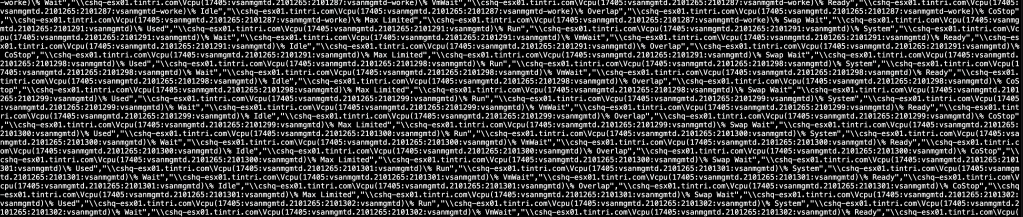
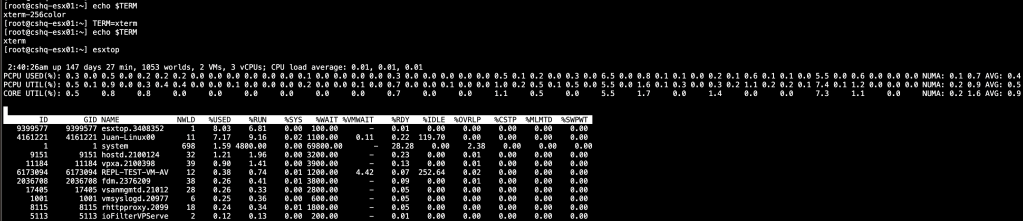
    While running esxtop you might see below value which is not formatted :

    Validate the current terminal declaration type::

    [root@cshq-esx01:~] echo $TERM

    xterm-256color

    Change the type to :::TERM=xterm

    [root@cshq-esx01:~] TERM=xterm

    [root@cshq-esx01:~] echo $TERM

    xterm

    If you want a permanent solution and using Remote Desktop Manager ::

    Terminal–> Types –> Environment Variables to “xterm” from “xterm-256color”

    Clone operations and Snapshot operations

    Clone operations and snapshot operations are distinct, each with its own purpose and function calls when using automation tools like PowerCLI or vSphere API.

    Clone Operations

    Function Call in PowerCLI: To clone a VM in PowerCLI, you would use the New-VM cmdlet with the -Template parameter, specifying the source VM to clone from.

    New-VM -Name 'ClonedVM' -VM 'SourceVM' -Datastore 'TargetDatastore' -Location 'TargetResourcePool'

    Function Call in vSphere API: In the vSphere API, you would call the CloneVM_Task method on the source VM managed object.

    task = source_vm.CloneVM_Task(folder=dest_folder, name='ClonedVM', spec=clone_spec)

    Difference Between Cloning and Snapshotting:

    • Cloning creates a separate, independent copy of a virtual machine. The new VM has its own set of files on the datastore and a unique identity within the vCenter environment.
    • Cloning is often used for deploying new VMs from a template or existing VM without affecting the original.

    Snapshot Operations

    Function Call in PowerCLI: To create a snapshot of a VM in PowerCLI, you would use the New-Snapshot cmdlet.

    New-Snapshot -VM 'SourceVM' -Name 'SnapshotName' -Description 'SnapshotDescription'

    Function Call in vSphere API: In the vSphere API, you would call the CreateSnapshot_Task method on the VM managed object.

    task = vm.CreateSnapshot_Task(name='SnapshotName', description='SnapshotDescription', memory=False, quiesce=False)

    Difference Between Cloning and Snapshotting:

    • A snapshot captures the state and data of a VM at a specific point in time. This includes the VM’s power state (on or off), the contents of the VM’s memory (if the snapshot includes the VM’s memory), and the current state of all the VM’s virtual disks.
    • Snapshots are used for point-in-time recovery, allowing you to revert to the exact state captured by the snapshot. They are not full copies and rely on the original disk files.

    Examples

    Cloning a VM:

    1. You have a VM called “WebServerTemplate” configured with your standard web server settings.
    2. You clone “WebServerTemplate” to create a new VM called “WebServer01”.
    3. “WebServer01” is now a separate VM with its settings identical to “WebServerTemplate” at the clone time but operates independently going forward.

    Creating a Snapshot of a VM:

    1. You have a VM called “DatabaseServer” that is running a critical database.
    2. Before applying updates to the database software, you take a snapshot called “PreUpdateSnapshot”.
    3. After the snapshot, you proceed with the updates.
    4. If the updates cause issues, you can revert to the “PreUpdateSnapshot” to return the VM to the exact state it was in before the updates.

    When performing snapshot and clone operations in a VMware environment, different files are created and used for each process. Here’s a breakdown of the file types associated with each operation:

    Snapshot Operation Files:

    When you take a snapshot of a VMware virtual machine, the following files are associated with the snapshot operation:

    1. Snapshot Descriptor Files (.vmsd and .vmsn):
      • .vmsd – This file contains the metadata about the snapshot and child snapshot information.
      • .vmsn – This file stores the state of the VM at the time the snapshot was taken. If the snapshot includes the memory, this file will also contain the VM’s memory contents.
    2. Snapshot Data Files (Delta disks, .vmdk):
      • Delta .vmdk – These are the differential files that store changes made to the VM disk after the snapshot was taken. They are often referred to as “delta disks” or “child disks.”

    Example:

    • VM_Name-000001.vmdk – A delta disk created after the first snapshot.
    • VM_Name-000001-delta.vmdk – The differential file that stores the disk changes since the snapshot.
    1. Snapshot Configuration Files (.vmx and .vmxf):
      • These files are not created new for the snapshot; instead, they are updated to reference the current snapshot.

    Clone Operation Files:

    When you clone a VMware virtual machine, a new set of files is created for the clone, similar to the original VM’s files:

    1. Virtual Disk Files (.vmdk and -flat.vmdk):
      • .vmdk – The descriptor file for the virtual disk, which points to the actual data file.
      • -flat.vmdk – The data file that contains the cloned VM’s virtual disk data.
    2. VM Configuration File (.vmx):
      • .vmx – This is the primary configuration file that stores settings for the cloned VM.
    3. VM Team File (.vmxf):
      • .vmxf – An additional configuration file used if the VM is part of a team in VMware Workstation.
    4. BIOS Boot File (.nvram):
      • .nvram or .nvram– This file contains the BIOS state of the VM.
    5. Log Files (.log):
      • .log – These files contain log information about the VM’s operation and are created for the clone.

    Example:

    • If you clone a VM named “ProdServer” to a VM named “TestServer”, you will get a new set of files like TestServer.vmdk, TestServer.vmx, TestServer.vmxf, and TestServer.nvram, among others.

    In both operations, the directory structure on the datastore would also include a VM folder named after the VM (for clones) or the snapshot (as a subfolder for snapshots). The exact naming conventions for the files may vary depending on the version of the VMware product and the specific operations performed.

    Keep in mind that during a cloning operation, if you opt to customize the clone (e.g., changing the network settings, hostname, etc.), you may also have a customization specification file (.vmtx) associated with the clone. This file stores the customization settings applied during the cloning process.

    Moreover, during a clone operation, if you choose to clone from a snapshot point rather than the current state, the clone will be an exact copy of the VM at the point when the snapshot was taken, including the VM’s disk state as captured in the snapshot’s delta disk files.

    Below you will find PowerShell examples using VMware PowerCLI to clone a virtual machine and to create a snapshot of a virtual machine. Before you can use these cmdlets, you need to install VMware PowerCLI and connect to your vCenter Server or ESXi host.

    Cloning a Virtual Machine

    To clone an existing VM to a new VM, you would use the New-VM cmdlet in PowerCLI. Here’s an example:

    # Connect to vCenter
    Connect-VIServer -Server 'vcenter_server_name' -User 'username' -Password 'password'

    # Clone VM
    $sourceVM = Get-VM -Name 'SourceVMName'
    $targetDatastore = Get-Datastore -Name 'TargetDatastoreName'
    $targetVMHost = Get-VMHost -Name 'ESXiHostName'
    $location = Get-Folder -Name 'TargetLocationFolder' # The folder where the new VM will be located

    New-VM -Name 'NewClonedVMName' -VM $sourceVM -Datastore $targetDatastore -VMHost $targetVMHost -Location $location

    # Disconnect from vCenter
    Disconnect-VIServer -Server 'vcenter_server_name' -Confirm:$false

    Make sure to replace 'vcenter_server_name', 'username', 'password', 'SourceVMName', 'TargetDatastoreName', 'ESXiHostName', 'TargetLocationFolder', and 'NewClonedVMName' with your actual environment details.

    Creating a Snapshot of a Virtual Machine

    To create a snapshot of a VM, you would use the New-Snapshot cmdlet. Here’s an example:

    # Connect to vCenter
    Connect-VIServer -Server 'vcenter_server_name' -User 'username' -Password 'password'

    # Create a snapshot
    $vm = Get-VM -Name 'VMName'
    $snapshotName = 'MySnapshotName'
    $snapshotDescription = 'Snapshot before update'

    New-Snapshot -VM $vm -Name $snapshotName -Description $snapshotDescription

    # Disconnect from vCenter
    Disconnect-VIServer -Server 'vcenter_server_name' -Confirm:$false

    Replace 'vcenter_server_name', 'username', 'password', 'VMName', 'MySnapshotName', and 'Snapshot before update' with your details.

    These examples assume you have the necessary permissions to perform these operations. Always test scripts in a non-production environment before running them in production.